Sapphire IPTV on Firestick: How to Set It Up
IPTV on Firestick with Sapphire IPTV: the short answer
Yes, you can get IPTV on a Firestick. An Amazon Fire TV Stick plugs into your TV's HDMI port, connects to your home internet, and runs player apps from the Amazon Appstore. Sapphire IPTV's setup guide names IPTV Smarters Pro from the Amazon Appstore for the Fire TV Stick, with TiviMate or Perfect Player as alternatives. You install the player, enter the login details from your Sapphire IPTV welcome email, and the channel list and TV guide load in the app.
This guide focuses on the Fire TV Stick itself: plugging it in, the remote, the network, the Appstore, the login and what to do when something doesn't work. For a general tour of the player app on every device, see the IPTV Smarters Pro guide.
What you need before you start
- An Amazon Fire TV Stick and a TV with a free HDMI port.
- An internet connection. Sapphire IPTV asks for at least 30 Mbps for HD and Full HD.
- An active plan and your login details. These arrive by email after you order (more on that below).
- A player app. Sapphire IPTV has no app of its own. IPTV Smarters Pro, TiviMate and Perfect Player are player apps made by their own developers; they contain no channels. Your subscription supplies the channels, the movies and series, and the guide.
Step 1: Plug in the Fire TV Stick and connect it
- Plug the stick into an HDMI port on the TV and connect its power cable to the power adapter that came in the box.
- Switch the TV to that HDMI input with the TV's own remote or input button.
- Pair the Fire TV remote if it isn't paired already; the on-screen steps cover it.
- Connect to your network in Settings → Network. Pick your Wi-Fi and enter the password.
Wi-Fi or an Ethernet adapter?
The Fire TV Stick has no Ethernet port, so it uses Wi-Fi by default. That is fine for many homes, but IPTV is sensitive to a weak signal. Sapphire IPTV's buffering advice starts with the connection: use a wired Ethernet connection, or 5 GHz Wi-Fi.
- 5 GHz Wi-Fi is faster and less crowded than 2.4 GHz, but its range is shorter. If your router broadcasts both bands, pick the 5 GHz one when the TV is reasonably close.
- An Ethernet adapter made for the Fire TV Stick lets you run a cable from the router. It is worth considering when the TV sits far from the router or you want to watch in 4K.
Step 2: Install IPTV Smarters Pro from the Amazon Appstore
- From the Fire TV home screen, open Find (the magnifying glass) and choose Search.
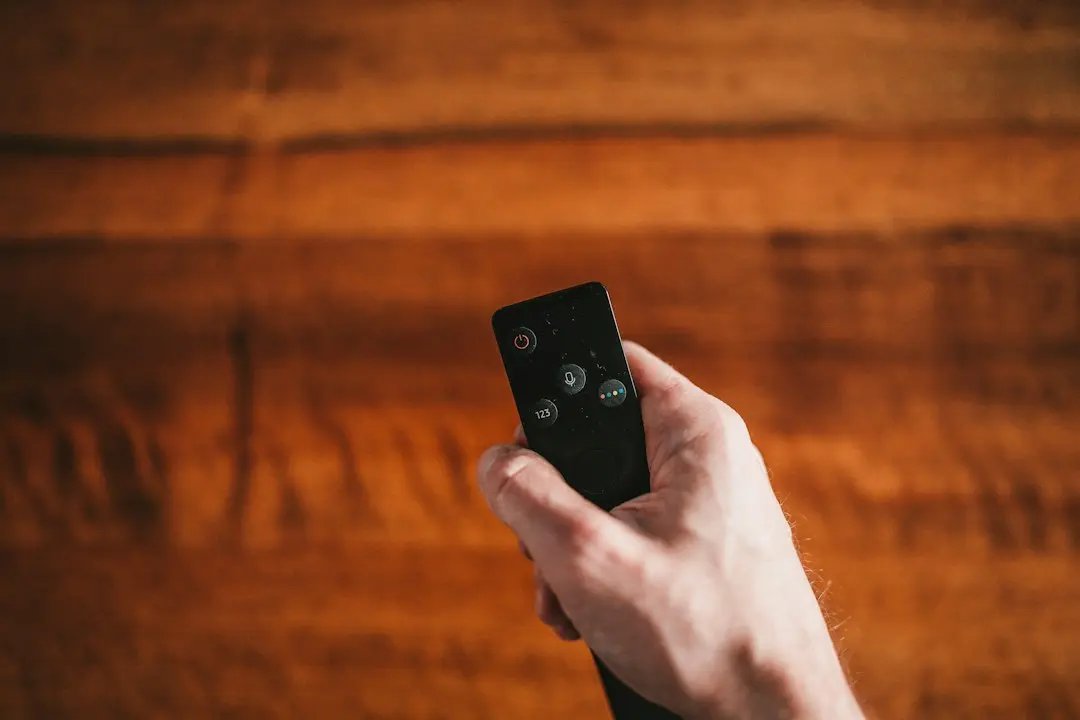
- Type "IPTV Smarters" with the on-screen keyboard, or hold the remote's microphone button and say the name.
- Select the app in the results and choose Get or Download.
- When it finishes, choose Open.
To keep it handy, highlight it in your apps, press Menu (three lines) and choose Move.
Install only from the Amazon Appstore. You don't need to change any security settings on the Fire TV Stick to watch Sapphire IPTV. If you can't find the app in your region's Appstore, message the team on WhatsApp and say which device you have.
Step 3: Enter your Sapphire IPTV login
Your welcome email contains your login details in more than one format. IPTV Smarters Pro accepts two of them; the exact button labels vary between app versions.
Option A: Xtream Codes login (easiest on a remote)
Choose the option to log in with Xtream Codes, then enter:
- Any name for the profile, such as "Living room".
- Your username and your password, exactly as written in the email.
- The server URL, including its port, such as :8080.
It is the shortest set of details to type with a TV remote.
Option B: M3U playlist link
Choose the option to add a playlist by URL, give it a name, and paste or type the M3U link from your email. M3U links are long, so take your time with the on-screen keyboard: a single wrong character stops the playlist loading. The difference between the two formats is explained in the M3U playlist guide.
Once you sign in, the app downloads the channel list and the on-demand library.
Step 4: Load the TV guide (EPG)
Every Sapphire IPTV plan includes a TV guide (EPG). With an Xtream Codes login, the guide usually comes through the same login. With an M3U link, add the EPG link from your welcome email in the app's EPG settings if the guide stays empty. If the schedule looks out of date, refresh or reload the EPG from the app's settings.
Step 5: Settings that help on a Fire TV Stick
In the player app's settings:
- Turn on hardware acceleration, so the stick's video chip does the decoding.
- Set the buffer to 10–15 seconds to ride out short drops in the connection.
And on the network side, close other downloads and streams on the same connection while you watch. These are the same four tips the setup guide gives for every device, and they matter most on a small stick running on Wi-Fi.
Alternatives: TiviMate and Perfect Player
The Sapphire IPTV setup guide names TiviMate and Perfect Player as alternatives on the Fire TV Stick. Both are player apps by their own developers and, like IPTV Smarters Pro, contain no channels. Both accept your login, so you can try another player without changing your plan. The team on WhatsApp can tell you which details to use in each one.
Fire TV remote tips
- Home returns to the Fire TV home screen from any app.
- Back steps out of menus, and out of full-screen playback to the channel list.
- Menu (three lines) opens extra options in many apps.
- Select (the center button) opens a channel or confirms a choice; the ring around it moves through lists.
Troubleshooting IPTV on Firestick
The login fails. Check the username, password and server URL character by character, including the port such as :8080. Capital letters matter.
The playlist won't load. Re-enter the M3U link, or switch to the Xtream Codes login, which is shorter to type.
The guide is empty. Add the EPG link from the welcome email, then refresh the EPG.
It buffers. Move to 5 GHz Wi-Fi or an Ethernet adapter, turn on hardware acceleration, set the buffer to 10–15 seconds and pause other downloads.
It stops when someone else watches. Each plan covers one connection at a time. Extra connections are available as a paid add-on; ask the team for the price.
Still stuck? Restart the stick from Settings → My Fire TV → Restart, then see the Fire TV Stick setup steps and the troubleshooting section. The team answers on WhatsApp 24/7.
How to order Sapphire IPTV for your Fire TV Stick
- Pick a plan: 1 month ($14.95), 3 months ($29.95), 6 months ($44.95) or 12 months ($59.95), each paid once, one connection.
- Message the team on WhatsApp. They confirm the plan and send a secure payment link; major credit and debit cards are accepted.
- Check your email for your login details and setup steps, and look in the spam folder if they don't appear.
There is no auto-renewal on this site: access stops at the end of the term, and you renew through the team on WhatsApp. If something goes wrong, the refund policy sets out when a refund applies.
Sapphire IPTV Firestick FAQ
Can you get IPTV on Firestick?
Yes. The Fire TV Stick runs IPTV player apps from the Amazon Appstore. With Sapphire IPTV, the setup guide names IPTV Smarters Pro, with TiviMate or Perfect Player as alternatives.
How do I get IPTV on my Firestick?
Order a plan through the team on WhatsApp, install IPTV Smarters Pro from the Amazon Appstore, then sign in with the Xtream Codes details or the M3U link from your welcome email.
How do I install IPTV Smarters on Firestick?
Open Find → Search on the Fire TV home screen, type "IPTV Smarters", select the app and choose Get or Download. Then open it and add your login.
What is the best IPTV streaming app for Firestick?
There is no single answer; it depends on what you prefer to use. The setup guide names IPTV Smarters Pro from the Amazon Appstore first, with TiviMate and Perfect Player as alternatives. All three are players without channels of their own.
How do I add IPTV to Firestick?
Inside the player app, choose either the Xtream Codes login (server URL with port, username, password) or the option to add a playlist by URL and paste the M3U link. Add the EPG link if the guide stays empty.
Conclusion: IPTV on Firestick with Sapphire IPTV
Getting IPTV on Firestick takes a free HDMI port, a good connection, a player app from the Amazon Appstore and your login. Sapphire IPTV works through IPTV Smarters Pro, TiviMate or Perfect Player, with the Xtream Codes login as the easiest option on a remote. No free trial is published: ask on WhatsApp whether a test is possible, see the free trial page, or start with the 1-month plan on the Sapphire IPTV subscription page. Watching in 4K? Read the 4K IPTV guide as well.
Want to try Sapphire IPTV?
Pick a plan: 1, 3, 6 or 12 months, from $14.95, paid once. Questions first? Ask the team on WhatsApp.
Related articles
Sapphire IPTV with IPTV Smarters Pro: Setup Guide
How to watch Sapphire IPTV in IPTV Smarters Pro on Fire TV Stick, Android, iPhone, iPad and LG TVs: M3U link or Xtream Codes login, EPG, buffer settings.
Read the article
Sapphire IPTV M3U Playlist: URL, Xtream Codes and EPG
What is an M3U playlist? Sapphire IPTV explains its playlist URL, Xtream Codes login, MAG portal URL and EPG link, and which to use on each device.
Read the article
Sapphire IPTV 4K: What 4K IPTV Needs at Home
What does 4K IPTV need? Sapphire IPTV explains the screen, device, app and connection behind HD, Full HD and 4K streams, and how to cut buffering.
Read the article